The imported calendar that books the wrong hour
An imported snapshot's calendar shows connected and green, then books an hour off and on days you are closed. Here is why it happens, and the pass that fixes it.
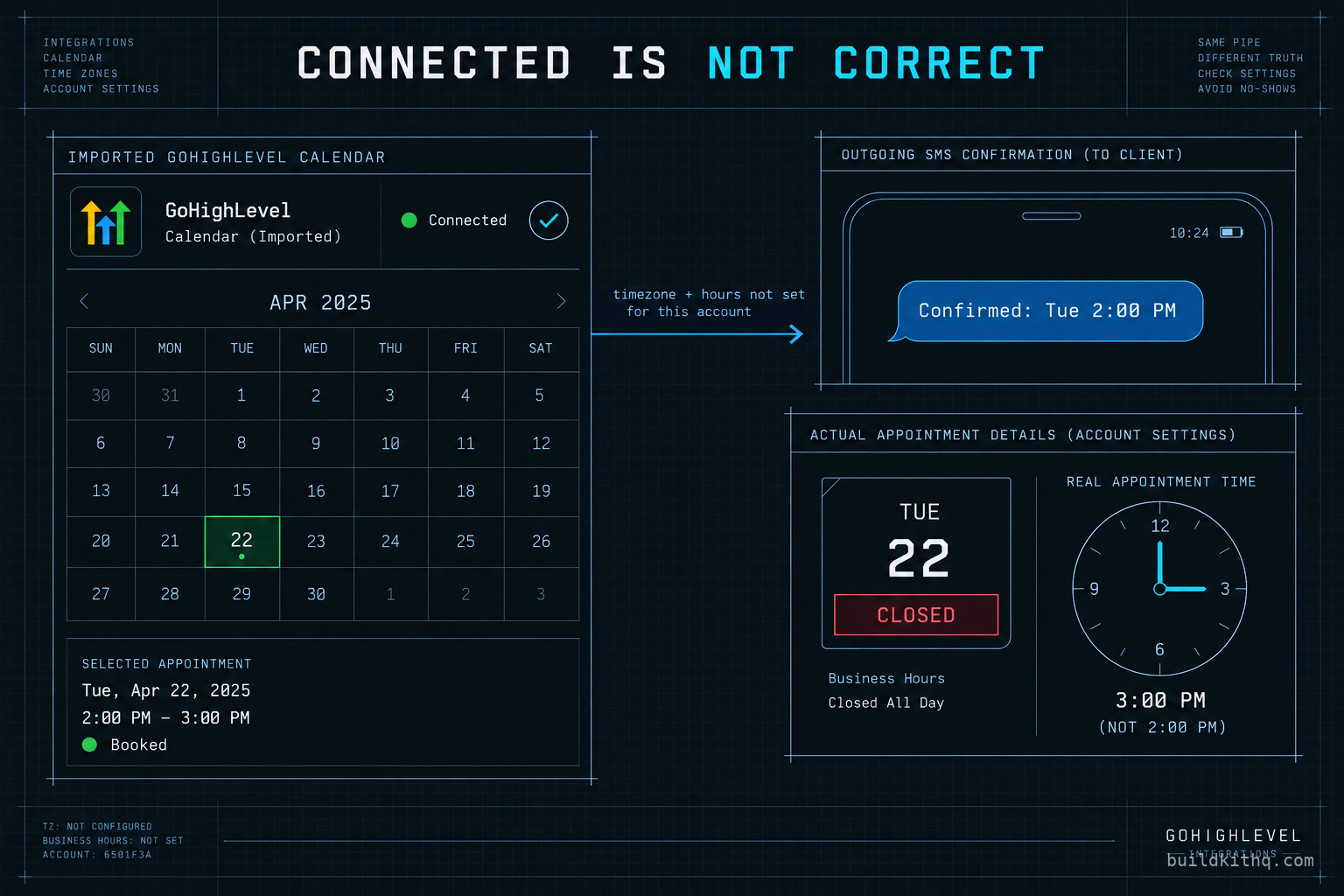
A wellness spa took its first online booking on a Wednesday afternoon, the day after we handed the account over. The confirmation text went out on time. The workflow ran. The calendar showed connected and green in the settings, the way it had since the import. And the client called an hour later because the customer had arrived at 2pm for an appointment the spa had on its book for 3pm. The confirmation the customer read said 2pm. The calendar the front desk read said 3pm. Both were the same booking, an hour apart, because the account and the calendar disagreed about what time it was.
Nothing had failed. The booking existed. The reminder had gone out. The page had taken the appointment cleanly. The calendar was pointed at the right Google account, which is the connection most people check, and that connection was fine. What was wrong sat one layer under it, in the timezone and the hours the calendar was quietly reading from, and those had come across from whoever built the snapshot rather than from the spa.
This is the failure the account never warns you about. A calendar is the one surface a lead touches directly, alone, with no one from your side watching. When it books the wrong hour, or offers a slot on a day the business is shut, or drops a second appointment on top of one that already exists, the person who finds out first is the customer. This is why that happens after a clean import, and the pass that catches it before a real booking does.
Connected is not the same as correct
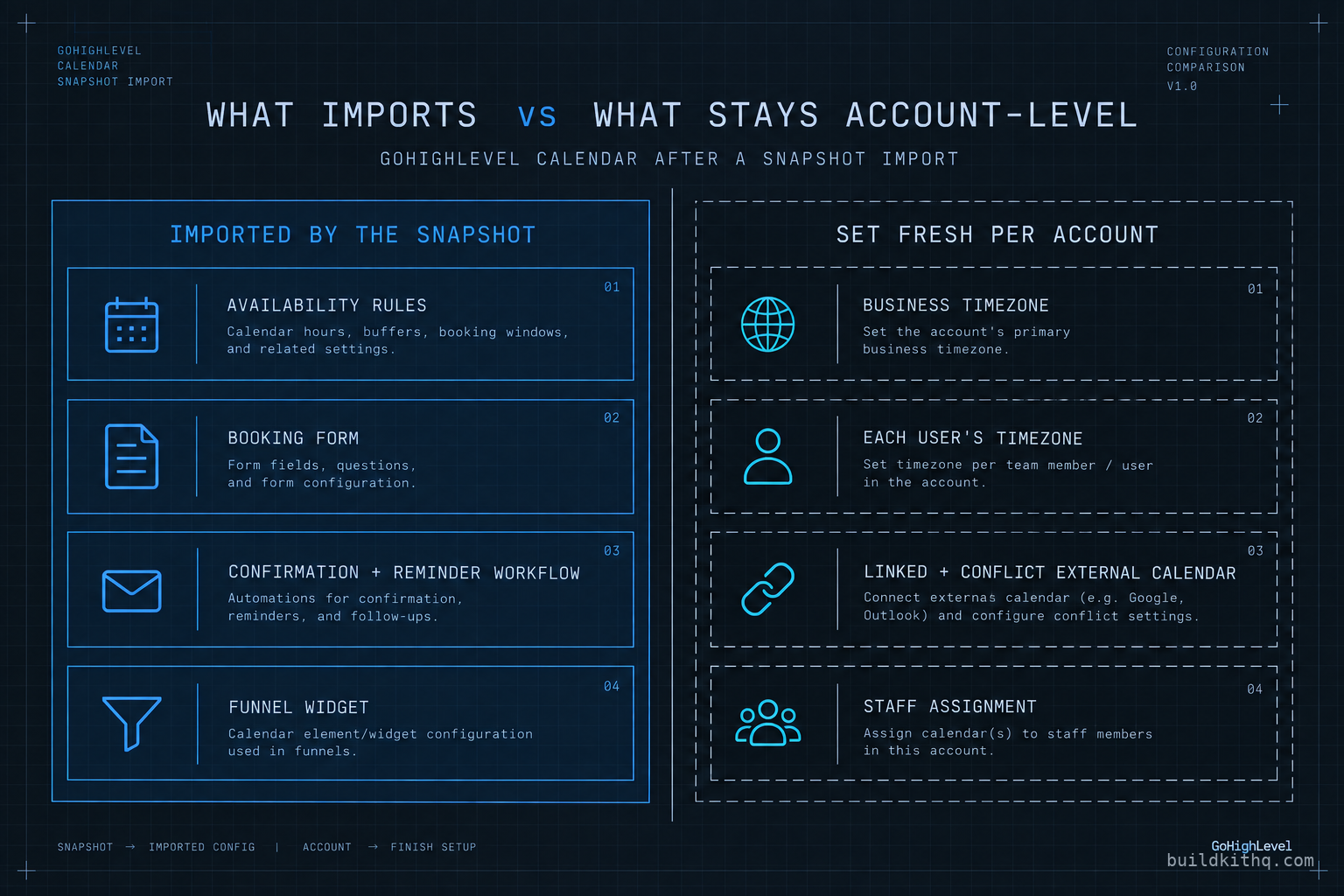
Import a snapshot and the calendar comes with it. The availability rules arrive. The booking form arrives, with its fields and its questions. The confirmation and reminder workflow arrives. The widget that embeds the calendar into a funnel arrives. All of that is snapshot content, and it copies across the way the rest of the build does, which is to say almost always cleanly. Open the calendar afterwards and it reads finished, because the parts that define how it looks and behaves did import.
What did not import is the account level scheduling context the calendar reads against. In GoHighLevel a sub-account is its own location, with its own business timezone set in Settings, Business Profile. Every staff member is a user with their own timezone and their own connected external calendar. The linked calendar that HighLevel checks for conflicts is authorized per user, in this account. None of that travels in a snapshot, because none of it belongs to the snapshot. It belongs to the client and the people who work there, and it starts blank or defaulted on every import.
So the calendar you inherit is a set of rules written against a context that is no longer present. The rules say “offer 9am to 5pm.” The question is 9am to 5pm in whose timezone, on whose working days, checked against whose real commitments. The snapshot answered those questions once, for the account it was built in. The import does not re-answer them for the account it lands in. That gap is where a green, connected calendar still books wrong.
The one connection people do check
The calendar-to-Google-account link is the connection most builders know to verify, and it is worth verifying, because a snapshot can leave it pointed at the original builder’s Google account so bookings land in a stranger’s diary. That specific failure, and the rest of the account level connections a snapshot cannot carry, are covered in the broader snapshot QA pass. This piece is about what stays wrong after you have fixed that one. Connecting the right Google account does not set the timezone, does not set the real opening hours, does not link the external calendar for conflict checking, and does not assign the booking to a real person. A calendar can be connected to exactly the right account and still be wrong in every one of those ways.
What actually decides the time
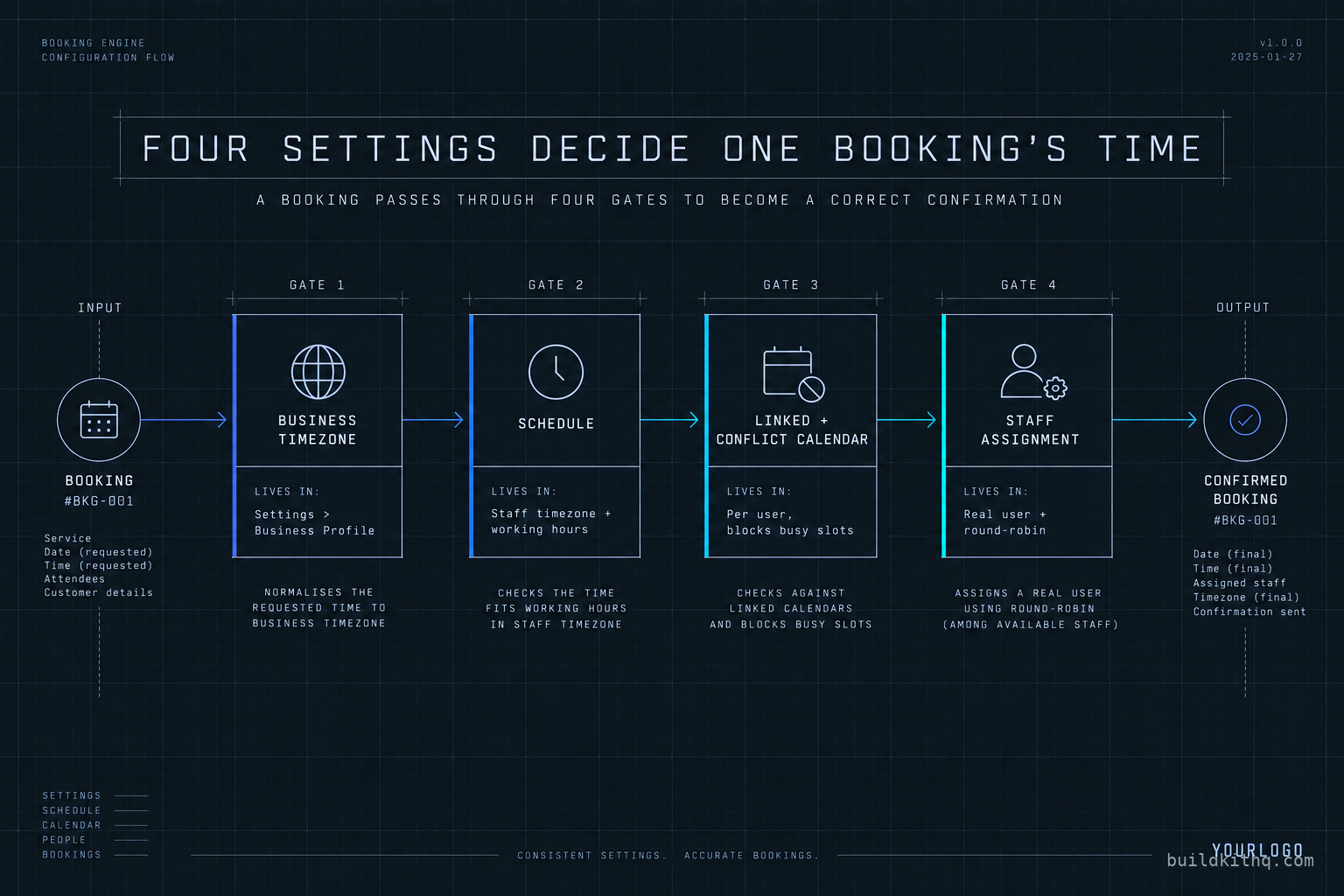
To fix a calendar you have to know which setting owns which part of a booking. There are four, and they sit in different places, which is why one pass through the calendar settings alone does not catch all of them.
The business timezone
The sub-account has one business timezone, in Settings, Business Profile. It is the anchor the account uses to show and reason about times. When a snapshot lands in an account whose business timezone was never set to the client’s, or was left at whatever the account defaulted to, every time the calendar prints is being translated from a zone that is not the client’s real one. HighLevel documents the timezone controls in its calendar timezone guide, and the important point is that changing how appointments are viewed does not change the account’s underlying timezone. The anchor is set once, in the business profile, and it has to match where the client actually operates.
The schedule’s own timezone and hours
A calendar’s availability in current HighLevel runs on schedules, shared availability objects that combine weekly working hours, date-specific overrides and a staff timezone into one reusable thing. HighLevel describes them in its schedules documentation, and the weekly and date-specific hours themselves in the availability guide. A snapshot carries the schedule, which means it carries the builder’s staff timezone and the builder’s default hours. Those are the rules the calendar offers slots against, and they are exactly the rules that need rewriting for the account they landed in.
The linked and conflict calendars
HighLevel only knows a slot is taken if it can see the conflicting event. That visibility comes from linking the staff member’s external calendar so its busy events block HighLevel slots, which HighLevel covers in its linked and conflict calendars guide. The link is authorized per user, in this account, so a fresh sub-account has none, and the platform sees an empty week for a person whose real diary is full. An event only blocks a slot when it is marked busy rather than free, which is a detail worth checking when a linked calendar still lets a booking through.
The staff assignment
A calendar is assigned to a user or a set of users, and round-robin distribution spreads bookings across them. The snapshot assigned the calendar to the users that existed in the source account. Those users do not exist in the destination sub-account, so the assignment points at nobody real, and the notifications, the round-robin and the conflict checking all key off an assignee that is not there. HighLevel’s double booking troubleshooting guide walks the assignment and sync side of this directly.
The failure modes, and how each one reads
There are more than four ways an imported calendar books wrong. These are the ones that reach a real customer, in the order we see them.
The hour-off confirmation
What you see: a booking whose confirmation and reminder print a time an hour or several hours away from the slot the customer thought they picked, like the spa’s 2pm text for a 3pm slot. The customer arrives at the printed time. The business expects them at the other one.
What is wrong: the account and the calendar disagree about the timezone. The business timezone in the profile, or the schedule’s staff timezone, still reads the builder’s zone, so the slot the lead selected is being translated on the way to the confirmation. The reminder inherits the same offset, so it repeats the wrong time rather than correcting it. A reminder that prints the wrong hour is a different failure from a reminder that never leaves the account at all, which has its own diagnosis.
The fix: set the business timezone in Settings, Business Profile to the client’s real location first. Then open the schedule behind the calendar and confirm its staff timezone matches. Decide deliberately whether contacts may adjust their own timezone when booking, because leaving that on for a purely local business is a common source of off-by-one confusion. Then book a test slot and read the time on the confirmation against the time you picked.
The slot on a day you are closed
What you see: a lead books a Monday when the business is shut, or cannot find a Saturday slot when Saturday is the busiest day. The calendar is offering the wrong week.
What is wrong: the weekly working hours and date-specific hours are calendar rules, and they imported as the builder’s defaults, commonly a flat weekday nine to five. The destination business keeps different hours, and nothing in the import knows that. So the calendar cheerfully offers slots the business cannot honour and hides the ones it wants.
The fix: rewrite the weekly working hours to the client’s real schedule, then add the date-specific overrides for the holidays and closures that matter in the next stretch. This is quick once you have the client’s real hours in front of you, and it is the item most likely to be skipped because the calendar looks plausible with defaults in place.
The double booking
What you see: two appointments land on the same slot, or a HighLevel booking drops on top of an appointment the staff member already had in their personal calendar. The person is booked twice and only finds out on the day.
What is wrong: no external calendar is linked for that user in this account, so HighLevel cannot see the existing commitment and treats the slot as open. A fresh sub-account starts with no connected calendars, so until the staff member’s Google or Outlook is linked and its busy events are visible, the platform is scheduling blind. This is the mechanism behind most post-import double bookings, and a busy trade like the salon and barber kit feels it fastest because the diary is full from day one.
The fix: connect and link the external calendar for each staff member the calendar assigns, and confirm the conflict check is on. Verify the events you expect to block slots are marked busy rather than free, because a free event is fetched but does not close the slot. Then look at whether more than one user is synced to the same calendar, which is its own source of overlap.
The booking assigned to nobody
What you see: bookings come in and no one is notified, or every booking lands on one person while the round-robin sits idle. The appointments exist but they are not reaching the people who should work them.
What is wrong: the calendar is assigned to users from the source account who do not exist here. The assignment resolves to nothing, so notifications have no real recipient and round-robin has no real pool to distribute across. The calendar looks assigned, because it shows an assignment, and the assignment points at ghosts.
The fix: reassign the calendar to this account’s actual users, rebuild the round-robin pool from the client’s real staff, and send a test booking to confirm the right person is notified. An assignment that shows a name is not the same as an assignment that reaches a person.
The widget pointed at the old calendar
What you see: the funnel takes a booking, but it lands in a calendar that is not the one you have been fixing, or it fails to appear at all. Your careful work on the calendar settings has no effect on what the page actually books into.
What is wrong: the calendar embed in the funnel references a specific calendar, and after an import that reference can resolve to the wrong calendar or an old identifier rather than the live one in this account. You can perfect a calendar the public page never touches.
The fix: open the funnel step that embeds the calendar and confirm it points at the calendar you have been configuring in this account. Then book through the live page, not the calendar’s own link, because the live page is the path a real lead takes and it is the only one that proves the widget is wired to the right calendar.
The numbers behind running the pass
A calendar pass is cheap and skipping it is not, and the arithmetic is short enough to do before you decide. Here are the assumptions, printed so you can put your own in.
Say a client sub-account runs on HighLevel’s Unlimited plan, listed at $297 a month or $2,970 a year on gohighlevel.com/pricing as checked on 30 September 2026, with a 14-day trial on every tier. Taken annually, $2,970 works out to about $8 a day for the sub-account. That $8 is spent whether the calendar books cleanly or books an hour off, so a week of a calendar that is out of true is a week of platform cost producing misbookings rather than appointments. The cost of the platform does not fall when the calendar is wrong. Only the value it returns does.
Now the labour against it. A full calendar pass on a fresh import, setting the business timezone, rewriting the real weekly and date-specific hours, linking the external calendar for each assigned user, reassigning the calendar to real staff and running one live test booking, takes well under an hour once you know the four places to look. Call it 40 minutes. Set that against the cost of the alternative: a customer who arrived an hour early to a closed door, a double booking that made the business look disorganised, a Saturday of demand the calendar refused to take. The 40 minutes is not the expensive path. The skipped 40 minutes is.
When a client buys a kit from us, that pass is part of the free installation support that ships with every kit: 10 hours of dedicated installation support, to be used within 12 days of purchase, spent on exactly this account level wiring. The kit itself is delivered within 24 business hours of purchase confirmation, business hours being 9am to 5pm Central, Monday to Friday, so a Friday afternoon order arrives on Monday, and the kit’s price is published in full on the pricing page rather than quoted on a call. The figure that matters here is not that price. It is that the calendar work is bounded and known, and it gets done before a real booking crosses the account.
One target is worth stating as exactly what it is. A booking calendar exists to hit design goals like a 70% no-show recovery target, and that target is a goal for the build, never a measured promise. A no-show reminder cannot recover an appointment when it prints the wrong hour, because it is confirming a time the customer will get wrong. A calendar out of true does not just fail to help the target. It manufactures the very no-shows the target was meant to prevent, by telling people to arrive at a time the business is not expecting them.
The objections, including the one against buying a kit
“It showed connected and green, so I assumed it was fine.” Green means the account is authorized to talk to the calendar. It does not mean the timezone is right, the hours are real, the external calendar is linked or the booking reaches a person. Connection is one of several things that has to be true, and it is the one the account is happy to confirm for you while staying silent about the other three. A green badge is the start of the check, not the end of it.
“A good snapshot should ship my hours and my timezone.” It cannot, because it has never seen them. A builder can ship a sensible default calendar. They cannot ship your client’s real opening hours, real timezone, connected diary or staff list, because those are facts about the client’s business that live nowhere in the snapshot. A kit that arrived with fixed hours baked in would be shipping the builder’s business rather than yours, which is worse than an empty setting, not better. The default is honest: it is telling you there is a client-specific decision to make, and the pass is where you make it.
“This is why I build from scratch instead of buying a kit.” Building from scratch removes none of this. Whether you build the calendar yourself or import it, you still set the timezone, still enter the real hours, still link the external calendar and still assign real staff, because that work is account setup and has nothing to do with where the calendar logic came from. Building from scratch adds the whole job of building the availability logic, the form and the confirmation flow on top of the same wiring. The kit removes that build. It does not, and cannot, remove the account wiring, and a busy appointment trade such as the spa and wellness kit still needs the same 40-minute pass on the day it goes live.
“I will catch a wrong booking at the first appointment.” You might, and the first appointment may be a paying customer standing at a locked door. An hour-off confirmation is the hardest kind of wrong to catch by eye, because it shows a time and a time looks correct. The only test that finds it is a live booking you make yourself and then read against the client’s real hours and the client’s real clock. A settings review shows you the rules. A live test shows you the booking, and the booking is what the customer gets.
The calendar pass is not long and it is not clever. It is the difference between a calendar that reads connected and a calendar that books the right hour on a day the business is open, to a person who is actually notified. That gap is invisible in the settings and obvious to the first customer. Run the pass every import, fix the four places that decide the time, and take one real booking through the live page before anyone else does.
Quick answers
It carries the calendar's availability rules and its booking form, and those rules were written against the builder's timezone and the builder's default hours. The destination sub-account has its own business timezone and its own real opening hours, and neither is set by the import. Until you set both in the new account, the calendar books against settings that belong to whoever built the snapshot, not to your client.
The appointment is being read against a timezone the account has not been told is wrong. The sub-account business timezone lives in Settings, Business Profile, and the calendar's schedule carries a staff timezone of its own. If either still reads the builder's zone, the slot the lead picked and the time the confirmation prints will not agree, and the reminder inherits the same offset.
Yes, and it is common right after an import. HighLevel only blocks a slot when it can see a conflicting event marked busy on a linked or conflict calendar. A fresh sub-account has no external calendar connected for the staff member, so the platform sees an empty week and offers every slot, including the ones already taken in the person's real Google or Outlook calendar.
Not safely. The calendar is the one surface a lead touches directly and unsupervised, so a wrong time or a closed-day slot reaches a customer before anyone on your side sees it. Set the timezone, the real hours, the external calendar link and the staff assignment, then run one live booking through it yourself before a real lead ever loads the page.
Almost never. The kit ships the availability logic, the booking form and the confirmation workflow, and those import correctly. What it cannot ship is your client's timezone, real opening hours, connected external calendar and staff list, because those are account infrastructure that starts fresh in every sub-account. A wrong booking is unset account data, not a broken build.
Keep reading
What a finished GoHighLevel account does with a lead
A lead moves through five stages in a finished GoHighLevel account. Here is what each stage is wired to, and the handoffs where a half-built one drops it.
Read itThe AI receptionist in your kit answers, but never books
An imported kit's AI receptionist replies around the clock and books no one. Here is the booking path underneath, the four places it breaks, and the fix.
Read itThe four ways to catch a lead your client's phone missed
A missed call is a lost client. Compare the GoHighLevel AI Receptionist, a human VA, missed-call text-back and voicemail on the eight things that matter.
Read it